Deployments
The Lifecycle group in the sidebar is where you turn intent into action — you define what should happen (deployment logic and shell scripts), run it against your infrastructure (deployments), and watch it execute (runs and logs). It also holds the Releases and Packages you track over time. You’ll find five items under Lifecycle: Releases, Deployments, Deployment Logic, Shell Scripts, and Packages.
Author deployment logic
Deployment logic describes what a deployment does, laid out as a visual flow rather than an opaque script.
- Open Lifecycle → Deployment Logic. A Deployment Logic tab opens listing Name, Type, Version, Description, and Created.
- Click New. In the New Deployment Logic dialog, enter a Name (required), choose a Type — Cluster, System Packages, or Service Package — add a Description, and click Create.
- The logic opens in a split editor: a Logic Editor canvas on top and a Details panel below.
Build the flow
The Logic Editor is a node-and-wire canvas:
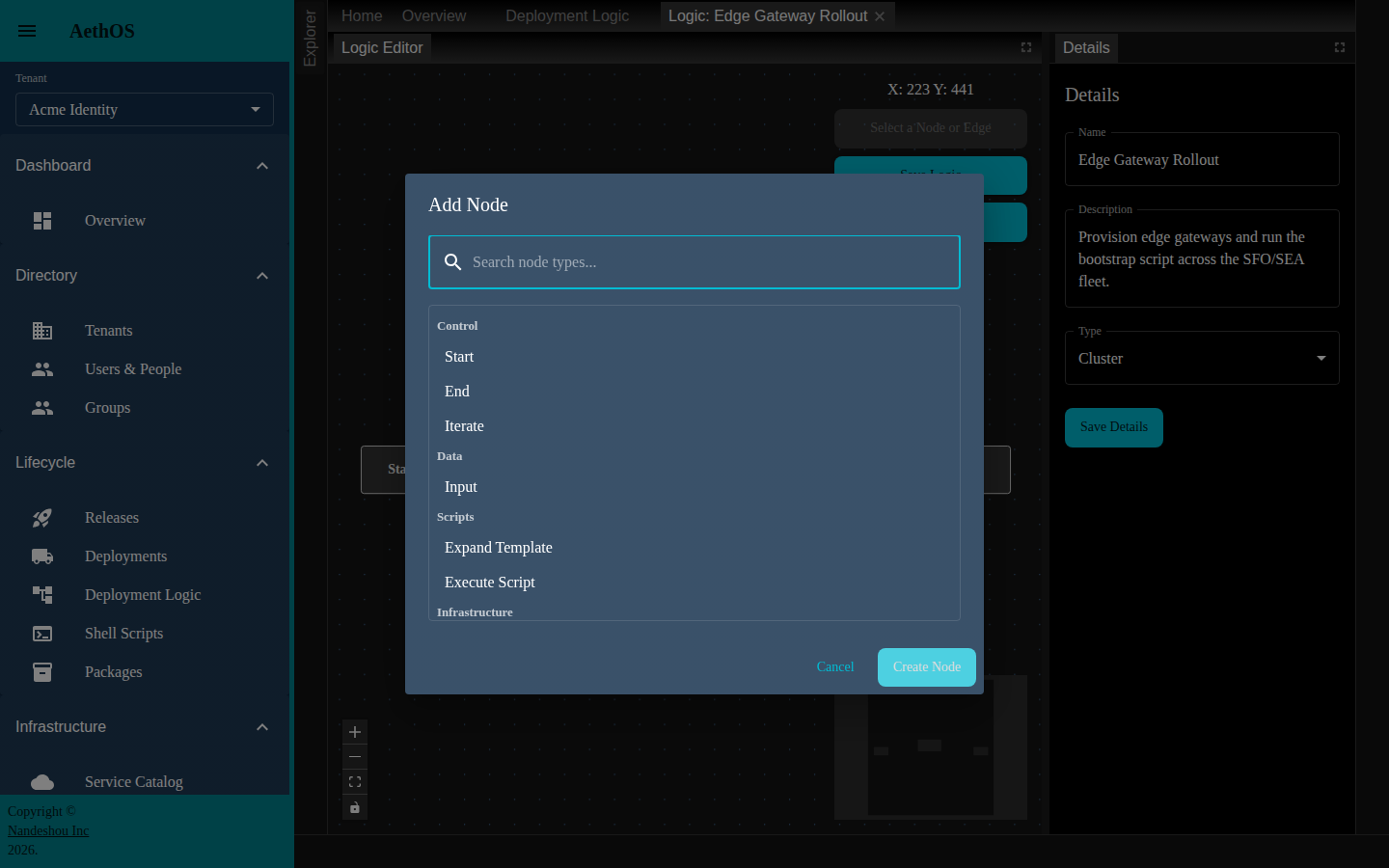
- Add a node. Right-click the canvas for the node menu, or drag out from a node’s handle onto empty canvas to open the Add Node dialog (with a search box). Nodes are grouped into:
- Control — Start, End, and Iterate
- Data — Input (a typed value)
- Scripts — Expand Template and Execute Script
- Infrastructure — Create VM
- Wire nodes together. Drag from one node’s output handle to another’s input handle. Handles are colour-coded by type (execution flow, SSH connection, script string, and so on) — AethOS only lets you connect handles of the same colour, and shows an error if you try to cross types.
- Save. Use the Save Logic button in the top-right panel to persist the graph. Clear Data wipes the canvas (with a confirmation), and Delete removes the selected node or edge (you can also press Delete or Backspace). A minimap and zoom controls sit in the corners.
In the Details panel you can edit the Name, Description, and Type, then click Save Details.
Manage shell scripts
Steps that come down to running commands are managed as shell scripts — named, reusable units you can reference from deployment logic.
- Open Lifecycle → Shell Scripts. A Shell Scripts tab opens listing Name, Description, and Created.
- Click New, or select a script and click Edit (or double-click it). Delete removes the selected script; Refresh reloads the list.
- In the editor, set the Name and Description, then write the script in the Script Content editor. It’s a Bash editor with Go-template support — use
{{ }}for dynamic values that get filled in at deployment time. - Click Save.
Run a deployment
A deployment applies a piece of deployment logic, with concrete input values, so it can be executed.
- Open Lifecycle → Deployments. A Deployments tab opens listing Name, Logic ID, Description, and Created.
- Click New. The deployment opens with Details and Logs tabs, on Details.
- Fill in the Details tab:
- Name (required) and a Description.
- Deployment Logic — choose the logic to run from the dropdown (each option shows its name and type).
- Input Parameters — once you pick logic that declares inputs, AethOS renders a field per input. Types map to controls: text and number fields, an SSH key picker (populated from your SSH Keys
), and comma-separated array fields. Required inputs are marked with
*.
- Click Save.
To kick a deployment off directly from the list, select it and click Run. You can also Edit or Delete a selected deployment.
Watch runs and logs
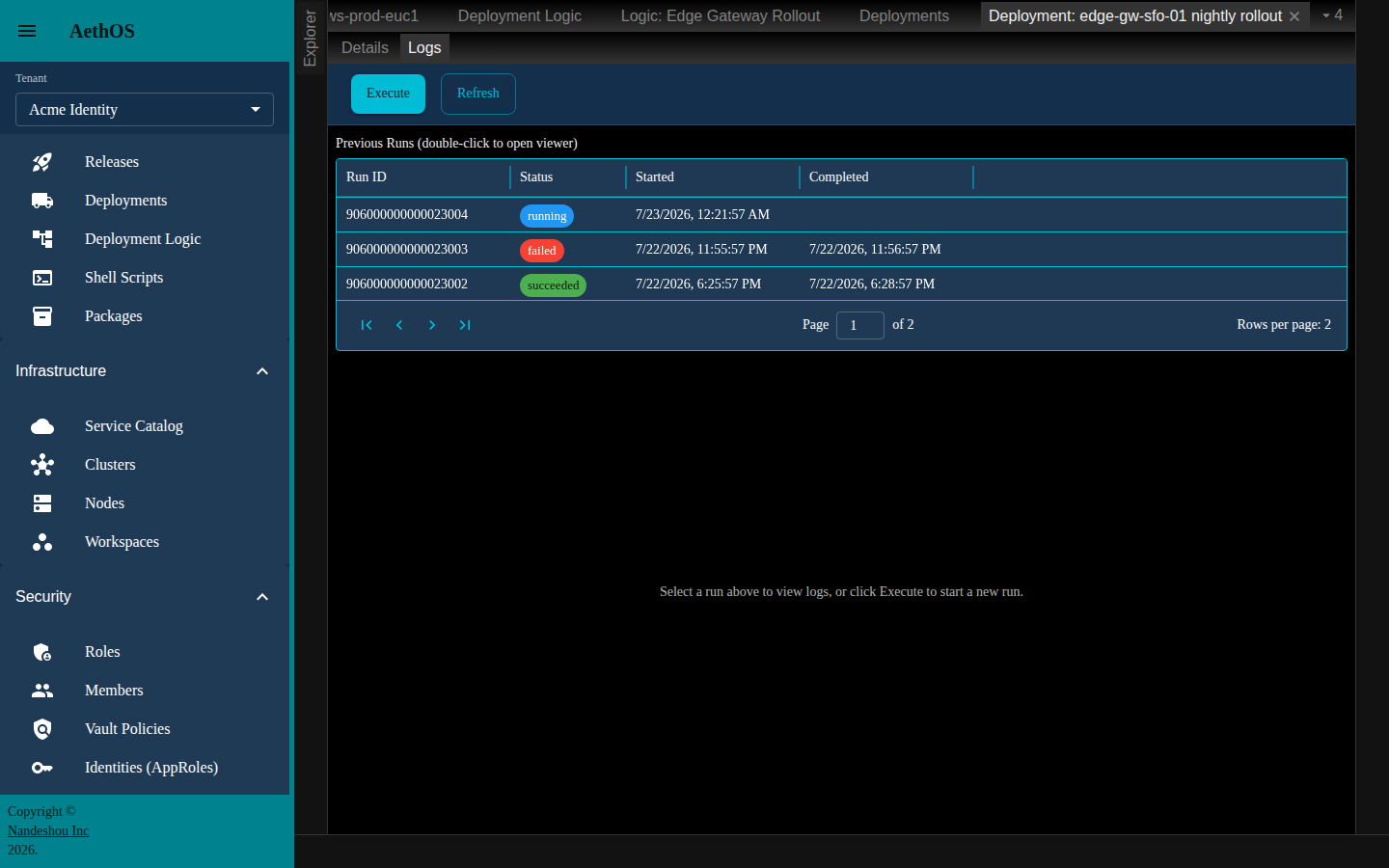
Every time a deployment executes it produces a run. Open a deployment and click its Logs tab:
- Click Execute to start a new run. Refresh reloads the run history.
- Previous Runs lists each run with its Run ID, Status (a chip — pending, running, succeeded, or failed), Started, and Completed time.
- While a run is running or pending, AethOS streams its logs live — you’ll see a Streaming indicator and a growing table of Time, Level, Node, and Message entries.
- Double-click a run to open the full Run viewer in its own tab. There you get the run’s metadata (Run ID, Status, Started, Completed), Level and Node filters, and the complete log table.
Track releases
A release is a named, versioned unit you move through a lifecycle.
- Open Lifecycle → Releases. A Releases tab opens listing Name, Version, Status (a chip — draft, published, deployed, or archived), Description, and Created.
- Click New, or select a release and click Edit (or double-click it). The editor’s Details tab has Name (required), Version (a semantic version such as
1.0.0, required), Description, and Status; Created At and Updated At are shown read-only once saved. Click Save. - To move a release forward, select it and click Publish. Delete removes the selected release.
Track packages
A package points at a source that AethOS can pull deployable software from.
- Open Lifecycle → Packages. A Packages tab opens listing Name, Source Type (a chip — github or apt), Source URL, Description, and Created.
- Click New, or select a package and click Edit (or double-click it). The package editor opens with two tabs, Details and Versions, on Details. Set its Name, Source Type, and Source URL. Delete (from the list) removes the selected package.
Review a package’s versions
Open a saved package and click its Versions tab to see the artefacts AethOS has pulled and stored for it. The tab is headed Package Versions (N) and lists each version’s Version, Filename, Checksum, Size (formatted in KB or MB), Stored (a Yes/No chip — whether the artefact is held in AethOS storage), and Created.
If you just created the package and haven’t saved it, the Versions tab reads “Save the package first to view versions.” — save on Details first.
Good to know
- “Deployment logic” and “deployments” are different things. Logic is the reusable definition you draw in the flow editor; a deployment binds one piece of logic to concrete input values so it can run. You author the logic first, then create a deployment that uses it.
- Live logs stream over a websocket. The Logs tab streams entries while a run is active and stops when it finishes; reopen a finished run in the Run viewer to page through its full history.
- SSH-key inputs read from Security. A deployment input of type SSH key offers the keys you’ve registered under Security → SSH Keys — add the key there first if the dropdown is empty.
Related pages
- Infrastructure — the clusters, nodes, and workspaces you deploy against
- Observability — the live message bus and the audit log
- Security — the SSH keys, vault policies, and identities deployments run under