Security
The Security group in the sidebar keeps the access rules and credentials for your tenant under explicit control. You’ll find five items under Security: Roles, Members, Vault Policies, Identities (AppRoles), and SSH Keys. Everything here is scoped to the tenant you’re signed in to.
Define roles
Roles are named bundles of permissions you grant to people.
- Open Security → Roles. A Roles tab opens, scoped to your current tenant.
- From here you can create a role and define the permissions it carries, then edit it as your needs change.
Manage members and their roles
Members is where you control who belongs to the tenant and what they can do.
- Open Security → Members. A Members tab opens.
- The top section administers membership — add people to the tenant or remove them.
- The lower section assigns roles to existing members, so each person carries the access their role grants.
Roles and members work together: Roles defines what a role can do; Members decides who holds which role in this tenant.
Write vault policies
Vault policies govern who and what may read the secrets AethOS holds. Rather than scattering credentials through scripts, secrets live in the vault and policies decide which actors can reach them.
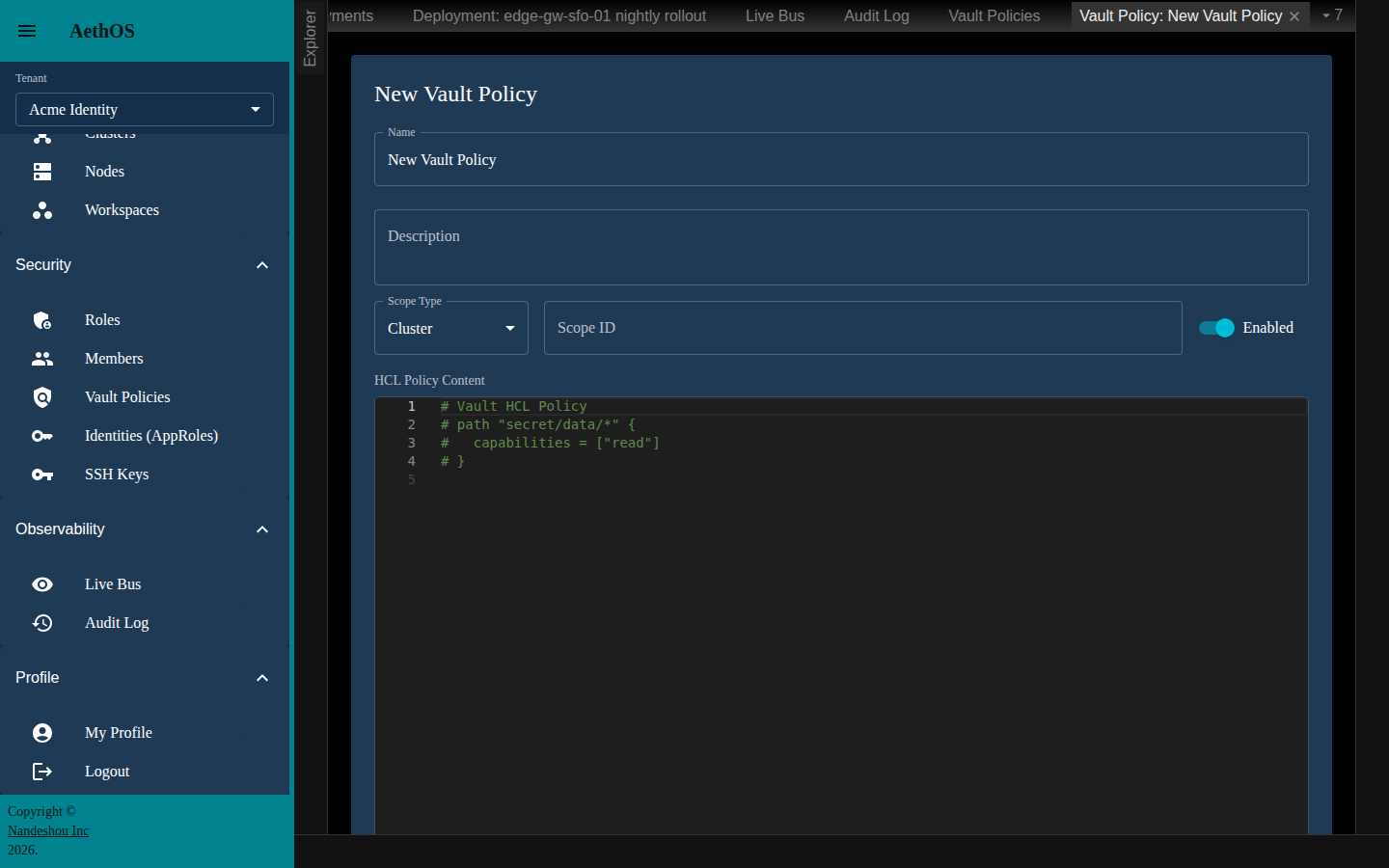
- Open Security → Vault Policies. A Vault Policies tab opens listing Name, Description, Scope Type (a chip — cluster, node, or group), Scope ID, Enabled (Active/Inactive), and Created. Use the Filter by Scope dropdown to narrow the list.
- Click New, or select a policy and click Edit (or double-click it). Delete removes the selected policy; Refresh reloads the list.
- In the editor:
- Set the Name and Description.
- Choose a Scope Type — Cluster, Node, or Group — and enter the Scope ID of the thing it applies to.
- Toggle Enabled on or off.
- Write the policy in the HCL Policy Content editor — a HashiCorp Configuration Language document that declares which Vault paths the policy grants and what capabilities (for example
read,list) on each.
- Click Save.
Manage machine identities (AppRoles)
Alongside human members, AethOS manages identities — the machine and service principals that nodes and automated deployments act as. These are the AppRoles your automation authenticates with.
- Open Security → Identities (AppRoles). An Identity List tab opens showing Name, Slug, Client ID, Realm, Active, and Created.
- Click New, or select an identity and click Edit (or double-click it). The editor opens on a Details tab where you set the identity’s name, slug, description, realm, client ID, and active state.
- To remove one, select it and click Delete — AethOS asks you to confirm first. Refresh reloads the list.
Managing these here keeps a clear record of what is acting in your tenant, not just who — which is what the audit log traces every action back to.
Add an SSH key
AethOS manages the SSH keys used to reach and operate your nodes, so access can be provisioned and revoked centrally instead of living on individual laptops.
- Open Security → SSH Keys. An SSH Keys tab opens listing Name, Fingerprint, Key Type, and Created At.
- Click Add SSH Key. In the dialog, enter a Key Name and paste your Public Key (for example
ssh-rsa AAAAB3...), then click Add Key. - To remove a key, select its row and click Delete Selected — you’ll be asked to confirm. Refresh reloads the list.
Keys you add here populate the SSH key picker on a deployment’s inputs , so deployment logic can connect to nodes without hard-coded credentials.
Good to know
- Roles and Members are tenant identity, Directory is tenant membership. People and groups are set up in The Directory ; Security is where you decide what those people are allowed to do.
- Vault policies are authored, not enforced from this screen. You write the HCL and scope it here; the vault applies it to the identities you bind it to.
Related pages
- The Directory — the people and groups you grant access to
- Deployments — the work that runs under these keys, policies, and identities
- Observability — auditing how access was used