UI Designer
Once you have generated an application, its Pages appear in the Explorer under Applications. Double-click a page there and it opens in the UI Designer — a visual builder where you can see the page’s layout, inspect its widgets, and shape it by describing what you want to a page-focused Copilot. The designer opens as a tab titled UI Designer: {page name}.
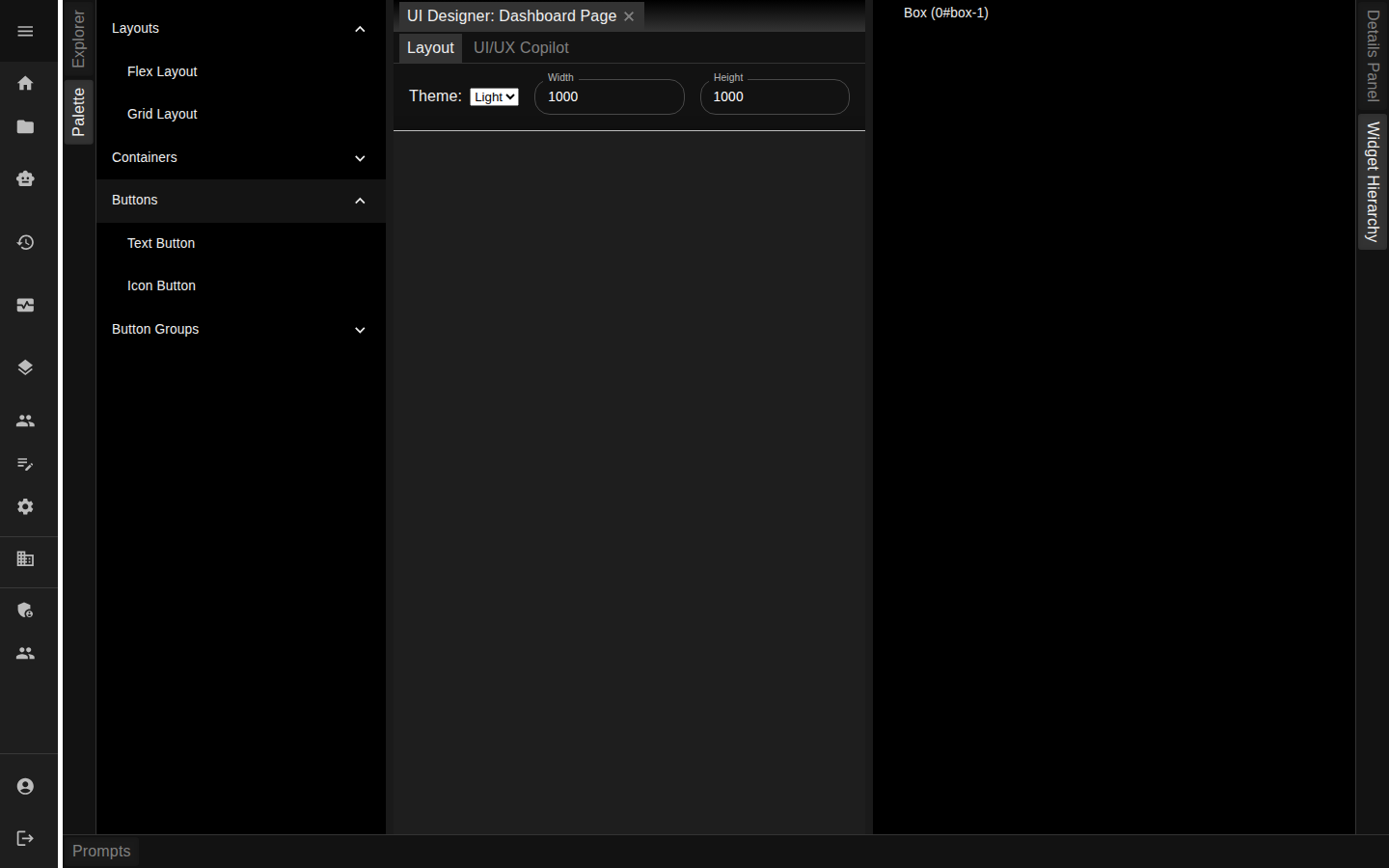
The two views
Inside the designer are two tabs:
- Layout — a visual canvas showing the page as it renders. A Theme selector switches the preview between Light and Dark, and Width and Height fields (plus a drag handle on the canvas corner) let you resize the page surface to check how the layout holds up at different sizes.
- UI/UX Copilot — a chat where you build and refine the page in plain language (see below).
The supporting panels
Two dockable panels frame the designer, the same way the Explorer and Details Panel frame the rest of the workspace:
- Palette — shares the left edge with the Explorer. It lists the widget types you can work with, grouped into Layouts, Containers, Buttons, and Button Groups; expand a group to see the widgets in it.
- Widget Hierarchy — shares the right edge with the Details Panel. It shows the page as a tree of its widgets, so you can see how the page is structured and find your way around a busy layout.
Shaping a page with the UI/UX Copilot
The UI/UX Copilot tab is a chat, like the one you use to build a Legacy project conversationally . You describe the page you want — or a change to it — in plain language and send it, and the Copilot updates the page’s layout, which you then see reflected on the Layout canvas. Each exchange is kept as an entry, and the same controls apply: you can edit an earlier message, delete an entry, replay an entry to re-run it and the ones after it, and show or hide an entry’s detail to bring its version of the layout back onto the canvas.
Because the Copilot works one request at a time, you build a page up the way you build the rest of the application — ask, review the result on the canvas, and refine.
Related pages
- Projects — the Explorer, where Pages live under Applications
- Building Conversationally — the Copilot controls the UI/UX Copilot shares
- Code Generation & Templates — where the pages you edit here come from