The Assistant
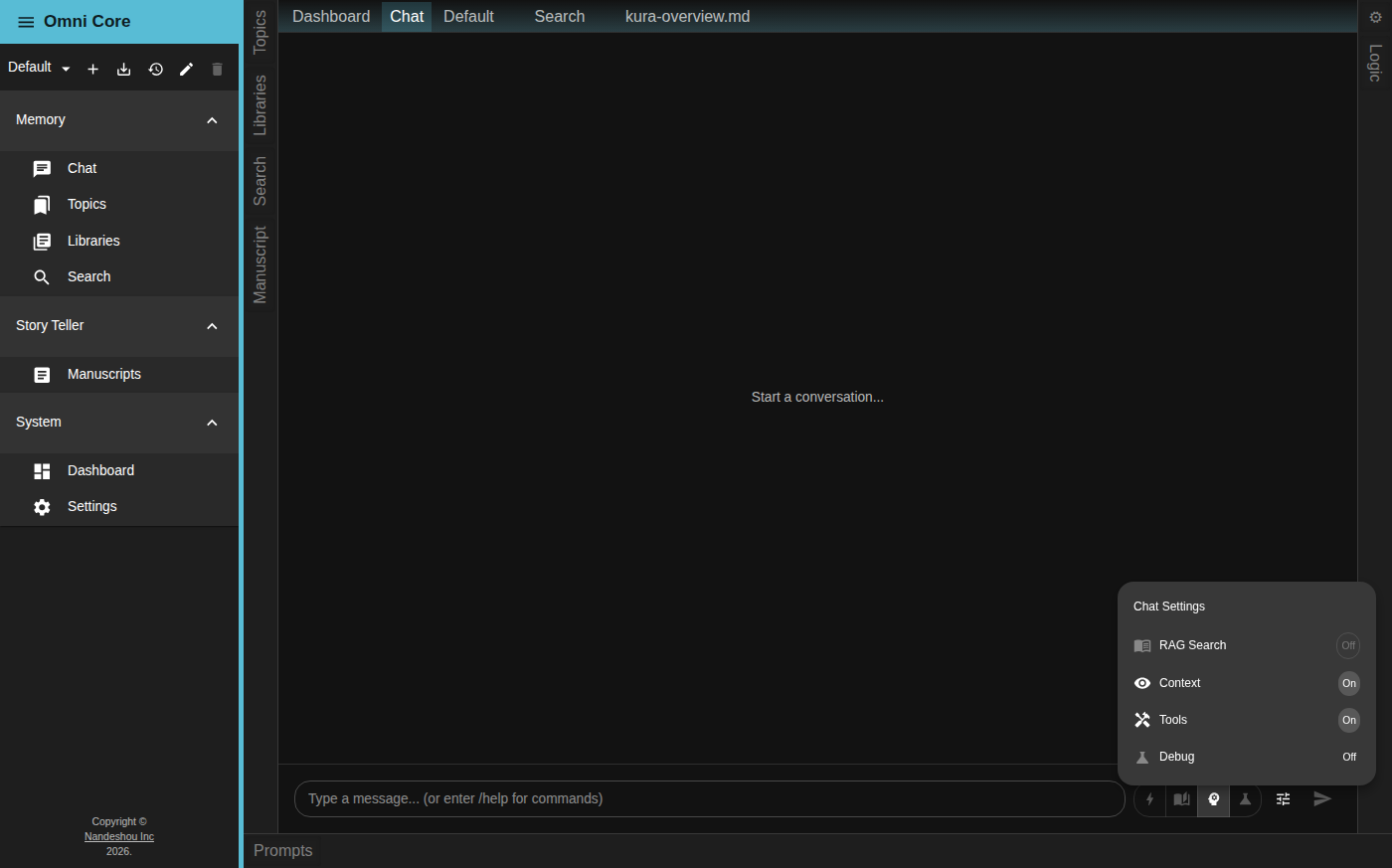
Omni Core’s built-in conversational assistant is Kura. It’s more than a chatbot — it’s wired into the structured memory and document libraries described elsewhere in this guide, so its answers can draw on what you’ve taught it and on your own files. You’ll find it under Chat in the Memory group of the menu rail; the Chat tab is always open.
Send a message
Type in the field at the bottom of the Chat tab and press Enter to send; use Shift+Enter for a new line. (The field prompts you: “Type a message… (or enter /help for commands).”) Your messages appear on the right, Kura’s responses on the left. Responses render Markdown, code, and tables, and any doc:// or topic:// links are clickable — they open the document or topic in a tab.
Under each response you’ll see a token breakdown (S / P / C / T), and if the answer used retrieval or topics, chips showing the sources and topics it drew on.
Shape memory as you go
Hover over a saved response to reveal its actions:
- Approve (thumbs up) — marks the exchange as accurate, so it can inform the relevant topic’s memorandum . Once it’s been applied, the button locks.
- Downvote (thumbs down) — excludes the exchange from future context and memory updates. Click again to clear it.
- Copy (the icon in the response’s corner) — copies the response text.
- Delete (the ✕) — removes the exchange from the conversation.
This is how memory stays trustworthy: you decide what gets folded back into Kura’s topics and what is set aside. You can also remove a topic chip from an exchange to detach it.
Controlling context and effort
Beside the message field, a row of buttons sets the think level — Quick, Story, Thoughtful, or Research. Each maps to a model category ; a level is only selectable if you’ve configured a model for it. If more than one model shares a level, click the active level again to choose which one.
The tune icon opens Chat settings, where you toggle what the assistant may draw on for the next message:
- RAG Search — ground answers in your open document libraries , with a priority slider weighting Topics vs Documents. (Needs an Embed model; otherwise it’s disabled.)
- Context — whether structured memory is included at all.
- Tools — whether the assistant may use its tools (e.g. creating or updating topics).
- Debug — record the reasoning steps behind a response.
- Story — appears when a story is active, routing the message through the story workflow.
Only the topics you’ve marked active are included as memory context, so you stay in control of what Kura knows in any conversation.
Slash commands
Type a command beginning with / to control the session directly. Command output appears inline as a system message.
/help— list the available commands (or/help <command>for detail)./new— start a new conversation. This drops a boundary so the assistant won’t see earlier messages as context; approved exchanges are flushed to memory first. The boundary shows as a “New Conversation” divider you can remove with its ✕ to restore the full context./mode <name>— switch chat mode (/mode defaultor/mode personal, the legacy pipelines)./logic <slug>— route messages through a custom Logic Graph./register <key>— register a purchased license key./exit— leave the current mode and return to normal. When a non-normal mode is active, a chip above the input shows it; click the chip’s ✕ to exit.
The document assistant
Every document in the editor has its own chat sidebar — the Document Assistant — opened with the chat icon in the editor toolbar. Scoped to the file you’re editing, it can plan changes, edit the document in natural language, and update related topics. Proposed edits are shown as a diff so you can review them before anything is applied. It has its own slash commands (/help, and scene-focused commands like /add, /refresh, /update, and /reference) that belong to the fiction workflow — see Storyteller
and Libraries & Search
for the editor itself.
Good to know
- Approvals drive memory. In normal mode nothing is folded into a topic until you approve it. The legacy personal mode auto-approves as you go.
- Downvoted exchanges are kept out of context, and deleting an exchange removes it entirely — useful for pruning a conversation before you approve.
- The input is disabled while the Kura engine is starting; you’ll see “Waiting for sidecar…” until it’s ready.
Related pages
- Kura Memory & Topics — the memory the assistant reads from and writes to
- Models & Privacy — choosing which model answers
- Libraries & Search — grounding answers in your documents