Getting Started
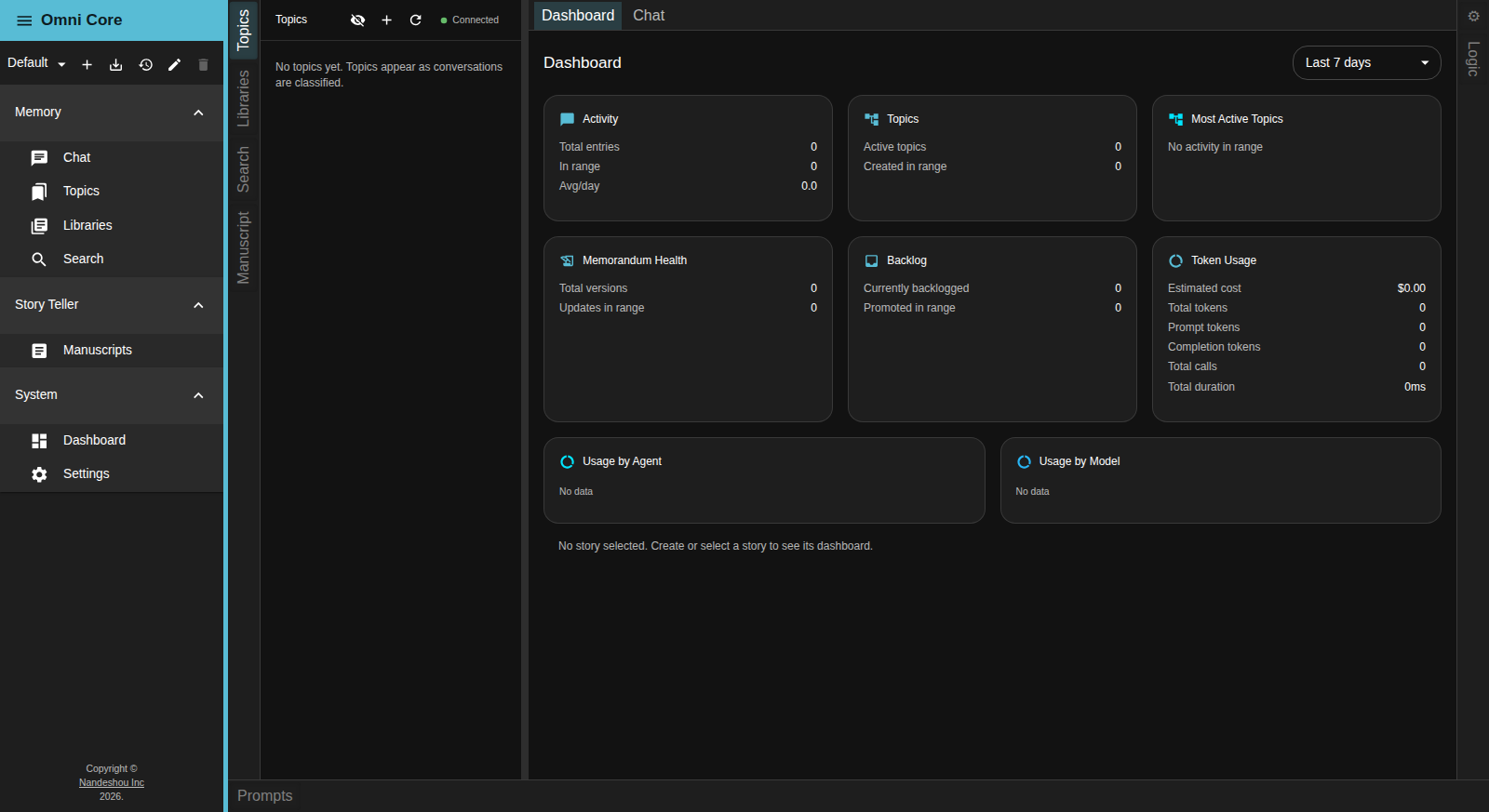
Omni Core is a local-first AI workspace — a single desktop application where you can chat with an assistant that remembers, organize what you learn into structured memory, keep your documents in searchable libraries, and edit files with an AI that understands their context. Everything runs on your own machine.
Local-first, by design
Omni Core runs its own engine — Kura — as a local background service that the app starts and stops for you. The message bus, the vector store, and the log database all run locally and embedded; the inference server is local too if you point Omni Core at a local model. Local is the default, so out of the box your data stays on your machine. You can point Omni Core at a local model and pay nothing per token, bring your own key for a frontier API, or mix the two per conversation. If you’d rather run against a hosted server, Omni Core also has an optional Cloud mode that signs in with your Nandeshou platform account — see Models & Privacy for both the local architecture and how to switch to Cloud.
Installing and launching
Omni Core ships as a desktop application. Windows is the primary supported build (an installer), with macOS (a .dmg) and Linux (a .deb) packages also produced. Download the package for your platform, install it, and launch Omni Core.
On first launch the app starts its local Kura engine and sets up local storage. You’ll see a brief “Connecting to sidecar…” / “Waiting for sidecar…” state while the engine comes up — the Topics panel shows a status indicator for the engine, and the app is ready as soon as it turns healthy. A default workspace is created for you so you can start working immediately. No account is needed to start in the default local mode; signing in is only required if you switch on the optional Cloud backend, which you can do at any time in Settings .
Workspaces
Your work in Omni Core is organized into workspaces. Each workspace has its own memory, its own topics, its own document libraries, and its own saved layout, kept separate from every other workspace. The workspace selector sits at the top of the left menu, just under the Omni Core title.
To create a workspace:
- Click the + (New workspace) button next to the workspace selector.
- Give the workspace a Workspace name and click Create.
The new workspace opens with its own empty memory and layout. Use the selector’s dropdown to switch between workspaces at any time — the whole window swaps to that workspace’s data.
A row of buttons next to the selector lets you save, restore, rename, and remove a workspace:
- Save workspace state (the download-style icon) remembers the current chat mode and which topics are active.
- Revert to saved state (the restore icon) rolls the workspace back to the last saved state.
- Rename workspace (the pencil icon) opens the Rename Workspace dialog to give it a new Workspace name.
- Delete workspace (the trash icon) removes the workspace and its data after you confirm. It’s disabled for the default workspace — the tooltip reads “The default workspace cannot be deleted” — so you can’t remove the one Omni Core always keeps.
A tour of the window
The far-left menu rail is how you move around. It’s grouped into sections, and clicking an item reveals its panel:
| Group | Item | What you do there |
|---|---|---|
| Memory | Chat | Talk to Kura, the built-in assistant |
| Topics | Browse and manage your structured memory | |
| Libraries | Open your document collections | |
| Search | Full-text search across indexed documents | |
| Storyteller | Manuscripts | The fiction-writing workflow — see Storyteller |
| System | Dashboard | At-a-glance activity, topics, and token usage |
| Settings | Models, themes, and engine settings |
The center of the window holds your open tabs. Dashboard and Chat are always open; anything else you open — a document, a topic, a library — appears as its own tab beside them. Panels dock along the left, right, and bottom edges, and you can drag, resize, and rearrange them. See The Workspace for the layout in depth.
You can open Search from anywhere with Ctrl+Shift+F (Cmd+Shift+F on macOS).
On the roadmap
In-app team chat — channels, direct messages, and threads inside Omni Core — is planned but not built yet. Today Omni Core is a single-user, local-first app; the assistant Chat panel is your conversation with Kura, not a place to message other people.
Related pages
- The Workspace — the layout, tabs, and panels in depth
- Kura Memory & Topics — how Omni Core remembers
- The Assistant — chatting with Kura and editing with the document assistant