Kura Memory & Topics
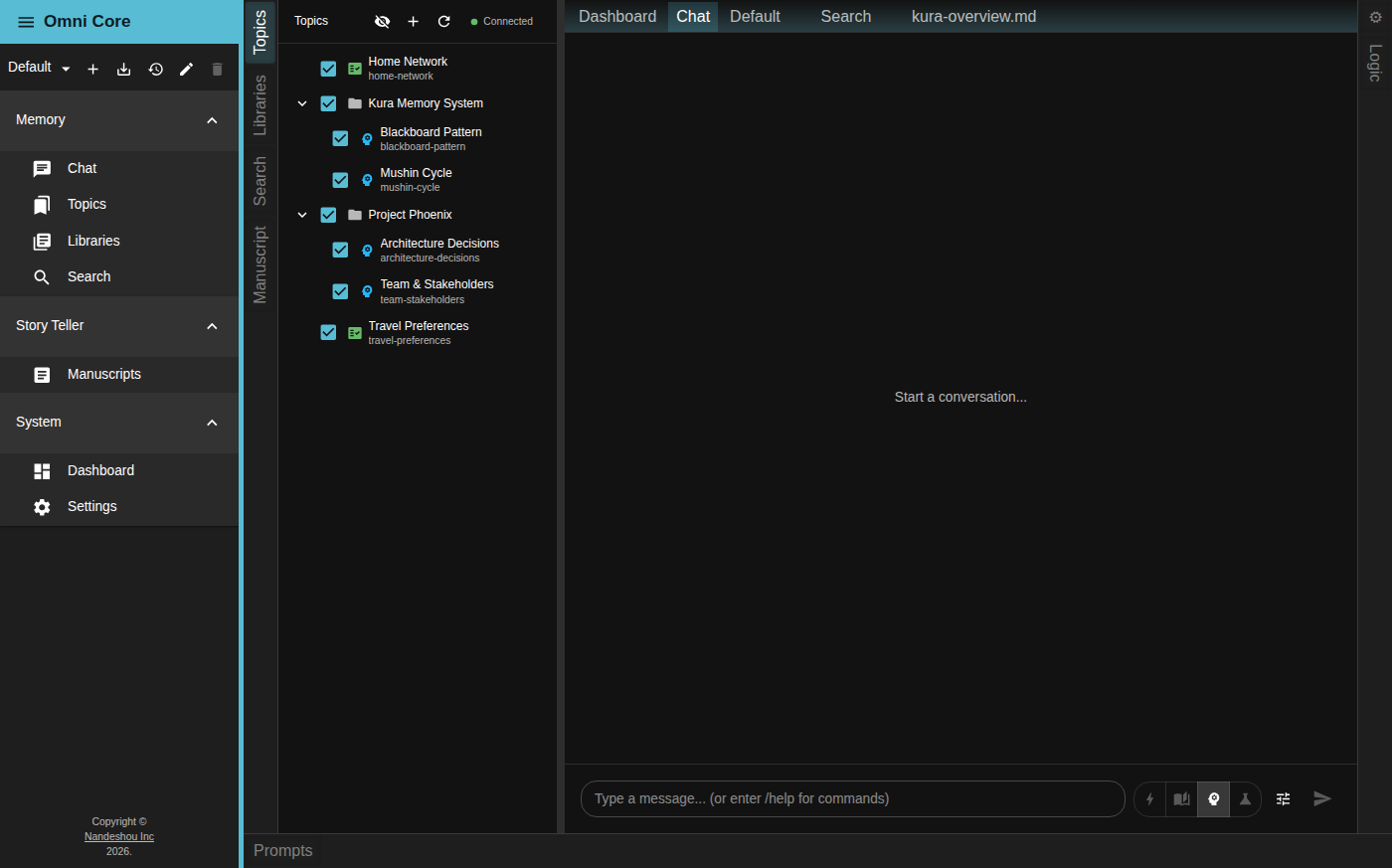
At the heart of Omni Core is Kura — a structured long-term memory. Rather than storing your history as an undifferentiated pile of embeddings, Kura organizes knowledge into topics: typed, hierarchical subjects that each carry a purpose, a summary, and a history. Memory grows with you as you chat, and you decide what stays in focus.
You’ll find your memory under Topics in the Memory group of the menu rail.
The topic tree
Topics are shown as a hierarchical tree in the Topics panel. Top-level topics sit at the root, and each topic can hold nested sub-topics — expand or collapse a topic to browse its children.
Most topics appear on their own: as you chat, Kura classifies your conversations and promotes recurring subjects into topics. When a workspace is new you’ll see “No topics yet. Topics appear as conversations are classified.” You can also create topics by hand (below).
The panel header has a few controls:
- The eye icon toggles Show inactive topics / Hide inactive topics.
- The + icon creates a top-level topic.
- The refresh icon reloads the tree.
- A status dot shows whether the Kura engine is healthy.
Topic types
Each topic has a type that sets its icon and how Kura treats it. When you create a topic by hand you pick from:
| Type | Purpose |
|---|---|
| Memory | General knowledge and conversation memory |
| Fact | Verified facts and reference information |
| Timeline | Chronological events and sequences |
| Character | People or story characters, with structured sheets |
| Place | Locations, with structured sheets |
| Event | Specific events |
| World | World-building rules and lore |
The Character, Place, Event, and World types support the Storyteller writing workflow; Memory, Fact, and Timeline serve general research and knowledge work.
Choose what’s active as context
Every topic in the tree has a checkbox. Checked (active) topics have their memoranda included as context when you chat; unchecked (inactive) topics are left out. Checking a parent also checks its children. This gives you precise control over what the assistant knows in any given conversation — bring a topic into focus when you need it, and leave the rest out to keep context lean.
By default the tree shows only active topics (and any parents with active children). Toggle the eye icon in the header to reveal inactive topics too.
Create and organize topics
To create a top-level topic, click the + in the panel header, enter a Topic Name, and click Create.
Right-click any topic for the rest of the actions:
- Edit Topic — open it for editing (child topics).
- Activate / Deactivate Topic — toggle whether it’s used as context.
- Merge Into… — fold a topic’s contents into another topic.
- Split Topic… — break one topic into several children, each with its own purpose.
- Move To… — re-parent the topic elsewhere in the tree.
- Create Sub-Topic — add a child (you choose its Name and Type).
- Create Top-Level Topic — add a new root topic.
- Delete — remove the topic and its sub-topics and data (with a confirmation).
Edit a topic and its memorandum
Double-click a topic (or choose Edit Topic) to open it. Each topic keeps a memorandum — a living summary Kura maintains — which you can read and edit directly. The topic editor also shows the conversation entries that shaped it and a log of recent changes. For Character and Place topics you’ll see structured sheets; for Timeline topics you’ll see editable events.
Memoranda keep a version history, so you can see how a subject evolved and roll back to an earlier version.
How memory grows
When you approve an exchange in Chat (the thumbs-up), its content can be folded into the relevant topic’s memorandum, so what you learn is kept instead of being lost at the end of a session. You stay in control: only approved exchanges inform memory, and only active topics are read back as context.
Good to know
- Whether a conversation becomes a topic is driven by classification. You can tune when that happens in Settings → Kura Settings (the Backlog Threshold), and how large a topic can grow before it’s eligible to split (the Mitosis Threshold).
- If your topics ever get out of shape, Settings → Rebuild Topics erases all topics and memoranda and re-runs the full pipeline over your conversation history. This regenerates assistant responses and can’t be undone.
- Your plan may cap the number of topics; the + button and Create Sub-Topic are disabled once you reach the limit.
Related pages
- The Assistant — how conversations feed memoranda
- Libraries & Search — grounding answers in your documents
- The Workspace — where the Topics panel lives