Libraries & Search
Omni Core keeps your documents in libraries and makes them searchable, so you can find things by the words you remember and edit them without leaving the app. Libraries live under Libraries in the Memory group of the menu rail; search lives under Search.
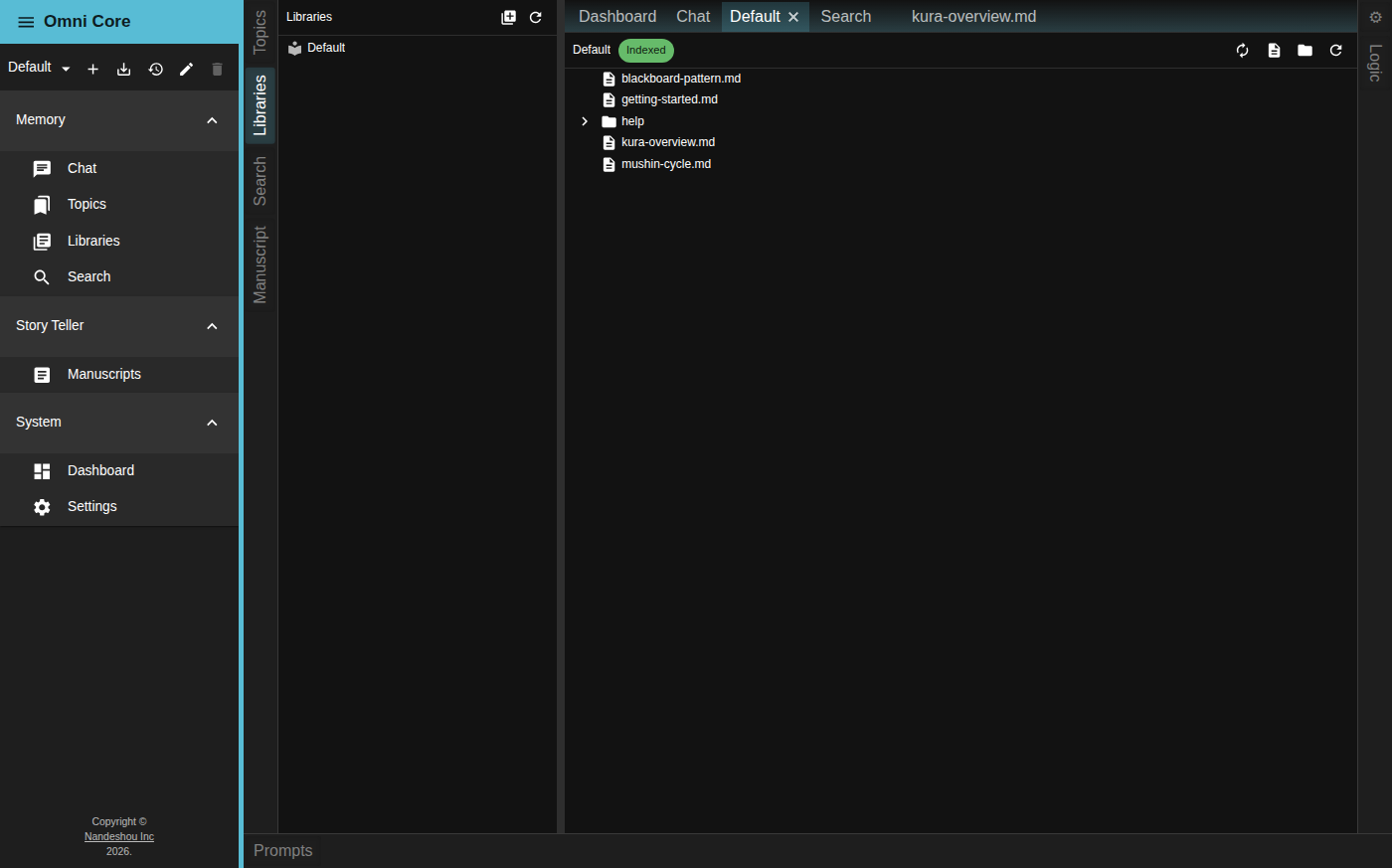
Libraries
The Libraries panel lists your document collections:
- The Default library is always present and holds documents Omni Core manages for you.
- External libraries are folders you link from anywhere on your computer.
Click a library to open it as a browsable tab.
Add an external library
- In the Libraries panel header, click the Add Library button (the library-plus icon).
- Pick a folder in the directory picker.
- Confirm or change the Library Name and click Add.
The folder and everything in it becomes available to browse and edit.
Manage a library
Right-click a library for its actions:
- Open — open it as a tab.
- Open in Explorer — reveal the folder in your system file manager.
- Rename Library — rename an external library (the Default library can’t be renamed).
- Remove Library — unlink an external library. This only removes it from Omni Core; it never deletes your files.
Inside an open library
Open a library and it fills a tab with a file tree and a toolbar. The toolbar shows an index-status chip and a few actions:
- The index-status chip tells you how the library’s search index stands. It reads Indexed (green) when everything is indexed, Not Indexed (red) when the library is open but its content hasn’t been indexed yet, Indexing N while N files are still being processed, Not open when the index isn’t loaded, or Status unavailable when the engine can’t report. Hover it for the exact counts (indexed, skipped, pending, errors).
- Re-index (the refresh-arrows icon) rebuilds the library’s embeddings. Ctrl+click (Cmd+click on macOS) to force a full re-index rather than an incremental one.
- New File and New Folder create items at the library root; you can also right-click any folder in the tree to add a file or folder inside it.
- Refresh reloads the file tree.
Search your documents
The Search panel does full-text search across your indexed documents. Open it from the menu rail, or press Ctrl+Shift+F (Cmd+Shift+F on macOS) from anywhere.
- Type into Search documents… — results appear as you type.
- Use the scope toggle to search All libraries or Open only.
- Results are grouped by document, each with matching snippets and its library name. Click a result to open that document.
When you open a library, its content is indexed for retrieval. Full-text search works on that index; semantic (meaning-based) retrieval also uses it, and requires an Embed model to be configured in Settings .
Ground the assistant in your documents (RAG)
The assistant can answer using your documents, with citations you can click to verify. Retrieval is opt-in per conversation: open Chat settings (the tune icon in the Chat panel) and turn on RAG Search. A priority slider lets you weight retrieval toward your Topics or your Documents. RAG needs an Embed model configured; without one the toggle stays disabled. See The Assistant for the toggles.
The document editor
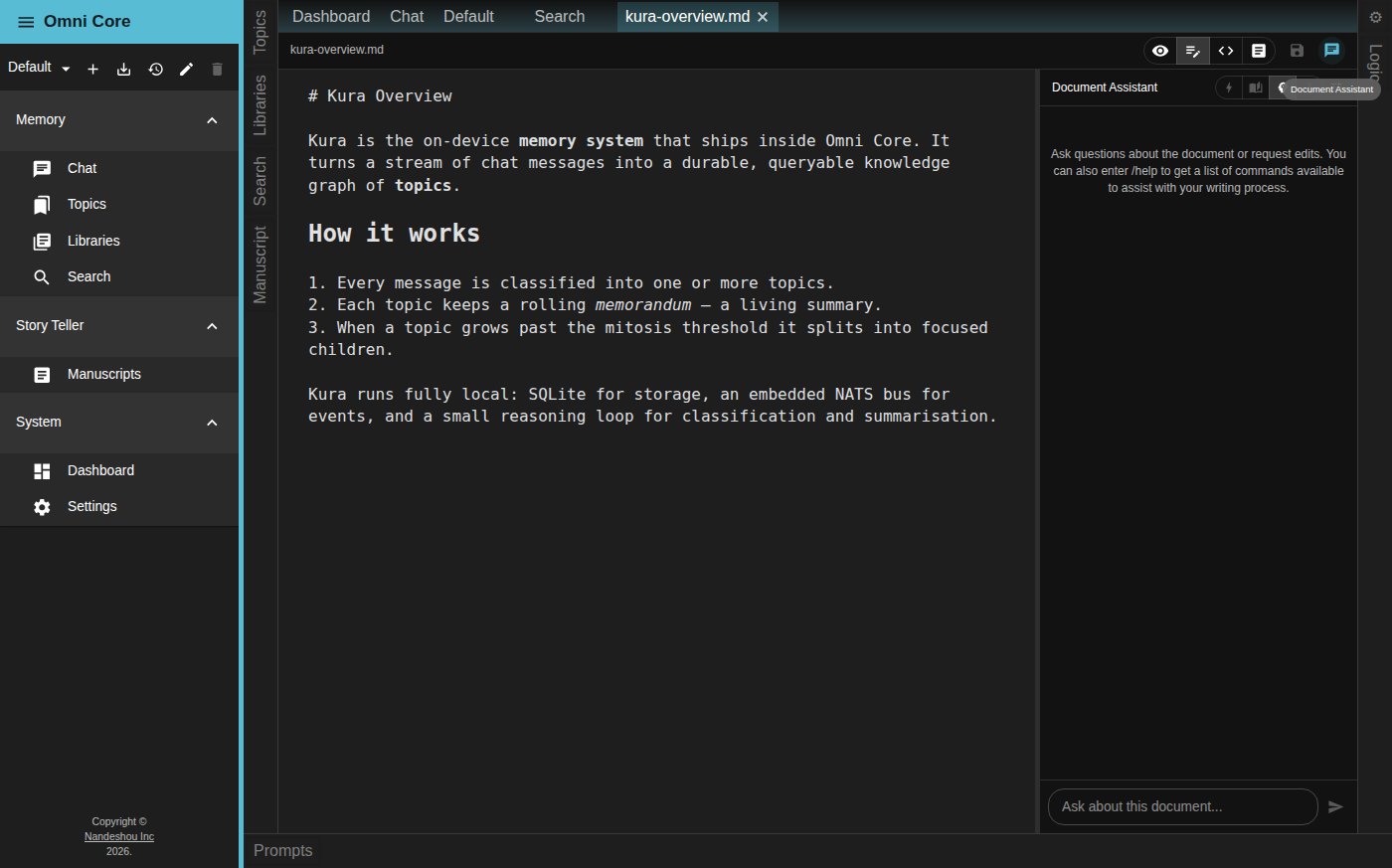
Open any file and Omni Core gives you four views, switched from the toolbar:
- Preview (Read-Only) — a clean rendered view.
- Code-Like — an in-app editor that renders formatting inline while you type.
- Code — a full code editor for precise, syntax-aware editing.
- WYSIWYG — rich editing without touching the markup.
Save with the Save button or Ctrl+S. Every document also has its own Document Assistant — a chat sidebar you open with the chat icon in the toolbar — so you can ask about the file, edit it in natural language, and review proposed changes as a diff before anything is applied. Fiction scenes get extra tools (a Sync Frontmatter button and scene-aware commands); see Storyteller for those.
If a file you have open is changed by another program on disk, Omni Core notices and shows a File Changed dialog — “This file has been modified externally. Do you want to reload it? Your unsaved changes will be lost.” Choose Keep Mine to hold on to your in-app edits, or Reload to replace them with the version on disk.
Good to know
- Full-text search works on any indexed library. Meaning-based (semantic) retrieval and RAG additionally require an Embed model — configure one in Settings → LLM Configurations with the category Embed (vector only).
- The index backend is configurable in Settings → Kura Settings (SQLite by default, or LanceDB). Changing the embed model, backend, or vector dimension prompts you to re-index your libraries.
- Your plan may cap how many libraries you can have; the Default library counts toward that limit.
Related pages
- The Assistant — the chat and in-editor assistants, and the RAG toggle
- Kura Memory & Topics — how retrieved content complements structured memory
- Models & Privacy — configuring the Embed model that powers retrieval