Models & Privacy
Omni Core is built so that you decide where your data goes and which model does the work. This page covers the Settings panel top to bottom — your License, the Backend (run locally or sign in to a hosted cloud), your model connections, and the settings underneath — plus what all of that means for your privacy. Open Settings from the System group of the menu rail (it also has the ⚙ tab in the right dock).
License and registration
The top of the Settings panel is the License section. It shows how Omni Core is licensed on this machine and lets you register a key without leaving Settings.
- A status chip reads Registered (green) when a key is active, or Free otherwise.
- Plan: shows your current plan — the free tier is labelled
omni-core-free; a registered plan lists the module(s) your key unlocks. - If your license carries an email, it’s shown next to the plan.
- If you’re on the Storyteller doc-chat trial, a banner counts down the days left (“Storyteller doc-chat trial: N days left.”) and warns once it has ended. This applies to the fiction workflow — see Storyteller .
To register, paste your key into the License key field and click Register (the button reads “Registering…” while it works). You can also register from Chat with the /register <key>
slash command — both do the same thing.
Your plan may cap how many workspaces, topics, and libraries you can create; when you hit a limit, the relevant + button is disabled and points you toward upgrading.
Backend: local or cloud
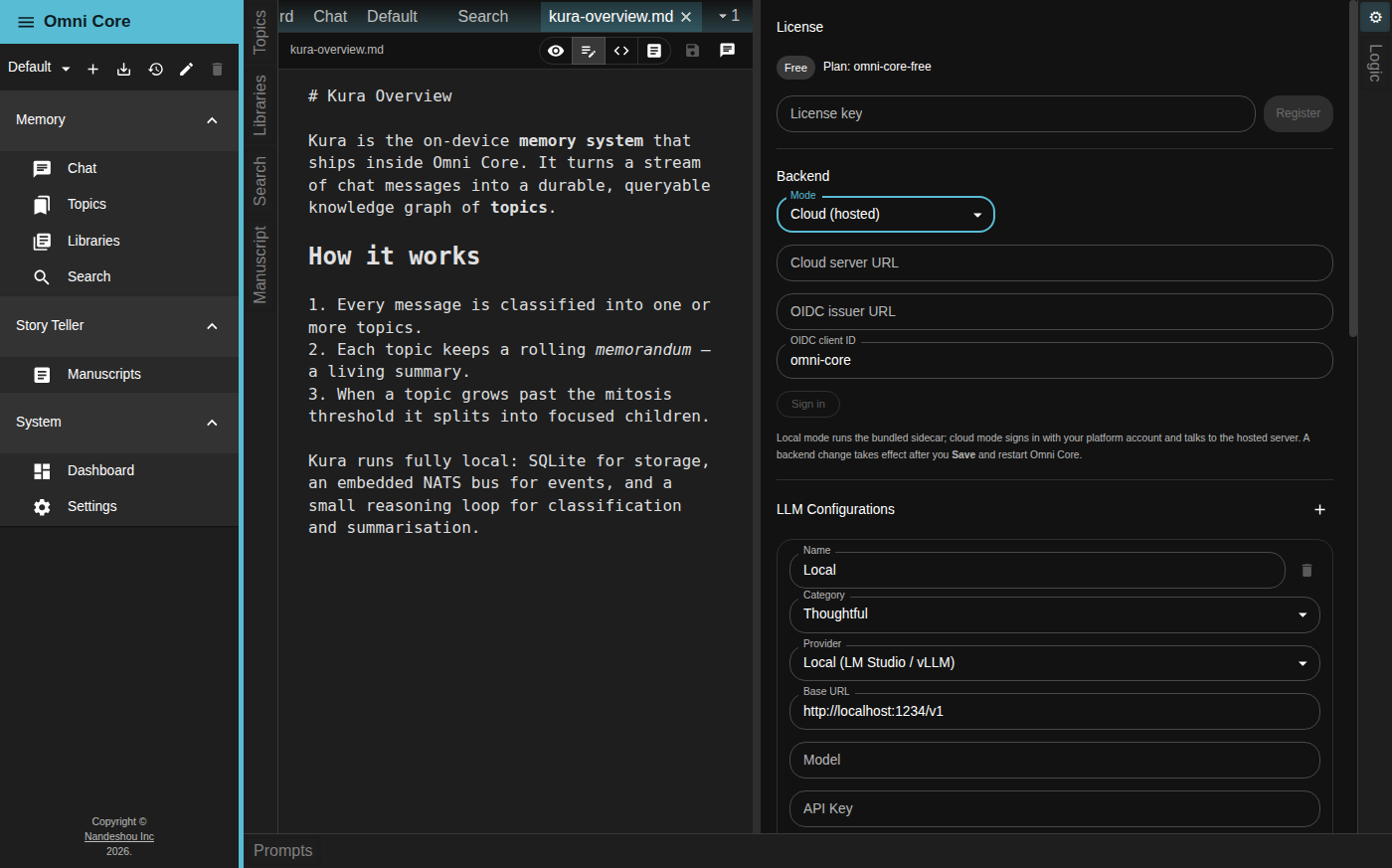
Just under License is the Backend section, which chooses where Omni Core’s engine runs. A Mode selector offers two choices:
- Local (bundled sidecar) — the default. Omni Core runs its own Kura engine on your machine, exactly as described under Local-first architecture below. No account is required.
- Cloud (hosted) — Omni Core talks to a hosted server instead of the bundled engine, and you sign in with your Nandeshou platform account.
Choose Cloud (hosted) and three fields appear:
| Field | What it’s for |
|---|---|
| Cloud server URL | The hosted Omni Core endpoint (looks like https://…azurecontainerapps.io). |
| OIDC issuer URL | The platform sign-in service Omni Core authenticates against. |
| OIDC client ID | The application identifier — defaults to omni-core; leave it unless you’ve been told otherwise. |
Below them is a Sign in button:
- Fill in at least the OIDC issuer URL (the button stays disabled until you do), then click Sign in.
- Omni Core opens your system web browser to the platform sign-in page (a secure loopback + PKCE flow — no password is ever handled inside the app).
- Sign in there; the browser shows “Signed in to Omni Core” and you can return to the app. The button now reads Signed in ✓ — sign in again, and a note confirms “Signed in — Save and restart to use the cloud backend.”
A backend change takes effect after you click Save and restart Omni Core — switching Mode alone doesn’t move you until the app comes back up. You can switch back to Local (bundled sidecar) the same way. Everything else on this page — models, categories, Kura settings — applies to whichever backend you’re running.
LLM Configurations
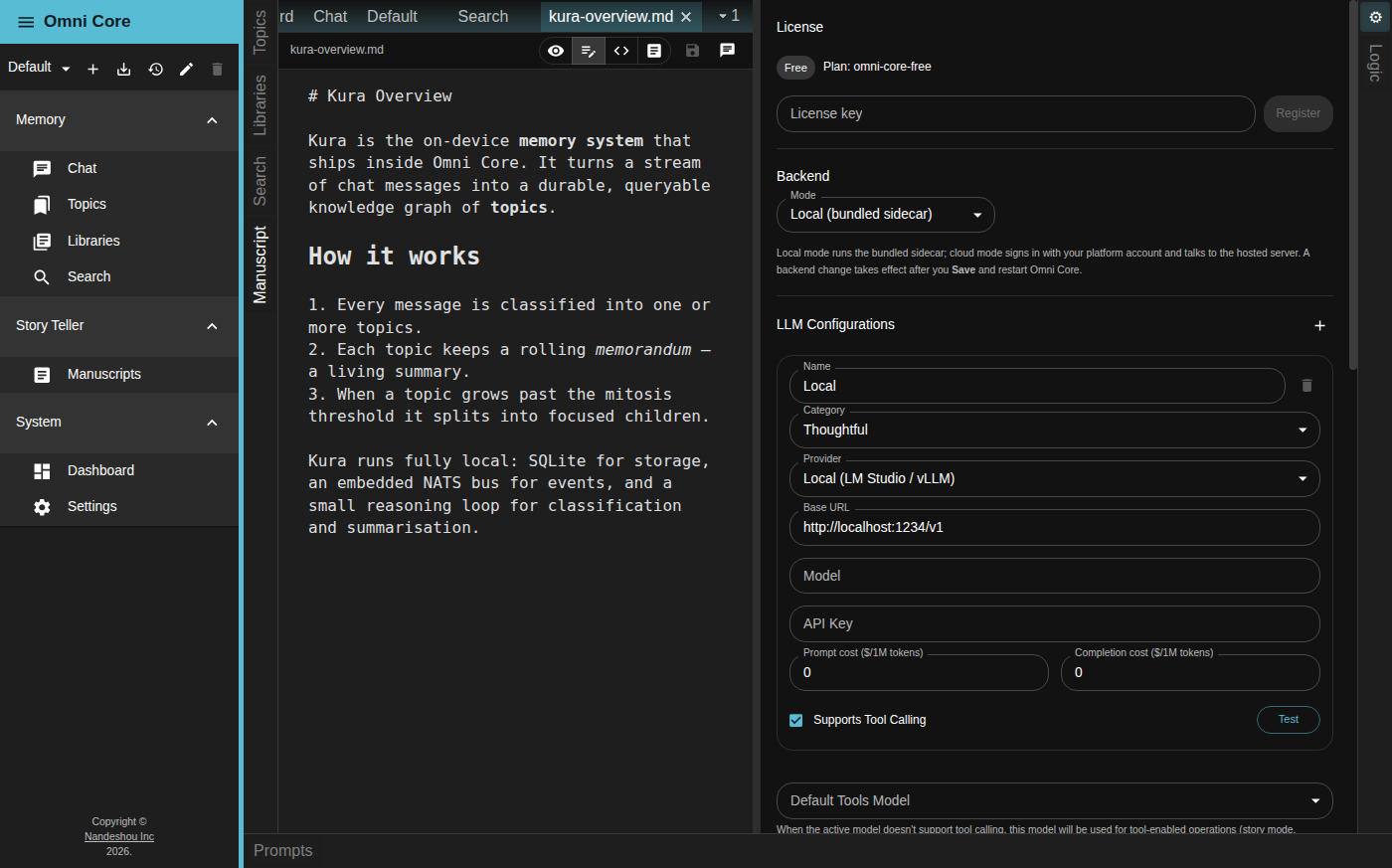
Below the Backend section comes LLM Configurations, where you connect one or more models. Add a configuration with the + button and remove one with the trash icon; at least one configuration must always remain. Each configuration has these fields:
| Field | Description |
|---|---|
| Name | A label for this configuration (e.g. “GPT-4o”, “Local Llama”) |
| Category | When this model is used (see below) |
| Provider | Local (LM Studio / vLLM), OpenAI, or Azure AI |
| Base URL | The endpoint URL |
| Model | The model identifier (e.g. gpt-4o) |
| API Key | Authentication key — optional for local models |
| Prompt cost ($/1M tokens) | Prompt-token cost, for usage tracking |
| Completion cost ($/1M tokens) | Completion-token cost, for usage tracking |
| Supports Tool Calling | Whether this model can use structured tools |
Click Test on a configuration to check the connection. For a chat model you’ll see whether it responded and whether tools are supported; for an embedding model you’ll see the detected vector dimension. A successful tools test also updates the Supports Tool Calling box for you.
Categories
A configuration’s Category decides when the model is used, so you can route different kinds of work to different models:
- Quick — fast responses.
- Story — creative-writing model.
- Thoughtful — balanced reasoning (the general default).
- Research — deep reasoning.
- Embed (vector only) — the embedding model that powers semantic search and RAG.
The first four line up with the think levels you pick in the Chat panel. Exactly one Embed configuration is required — Omni Core won’t save until there’s precisely one. If your chosen model can’t call tools, the Default Tools Model dropdown below the list picks a fallback for tool-enabled operations.
Bring your own model — or none
Point Omni Core at a local model (through LM Studio or vLLM) and pay nothing per token; bring your own key for a frontier API (OpenAI or Azure AI) when you want more capability; or mix the two and switch per conversation. Because cost is configured per model, Omni Core can estimate what a session would cost — visible on the Dashboard — whether or not you’re actually paying for it.
Other settings
Below the models, the Settings panel also has:
- Color Theme — pick the app’s accent theme.
- Kura Settings — Backlog Threshold, Mitosis Threshold, Page Size, Vector Store Backend (SQLite or LanceDB), and Embedding Vector Dimension.
- Application → Run in background — keep Kura running when you close the window, with a system-tray icon to reopen or quit.
- MCP Server → Require authentication — Omni Core can expose its memory to external MCP clients. Leave this on unless you want free local use without credentials, and only turn it off if you trust every process on the machine.
- Save applies your changes. Rebuild Topics (at the bottom) erases and regenerates all memory — use it deliberately.
Remember to click Save after editing configurations.
Local-first architecture
Omni Core is local-first by default. In the default Local (bundled sidecar) backend , Omni Core runs its own Kura engine as a local background service that the app starts and stops. The message bus, the vector store, and the log database are all local and embedded, and — with a local model — so is inference. In this mode no account is required to use your own data, and your notes, memory, documents, and conversations stay on your computer, with two deliberate exceptions:
- If you configure a remote model (OpenAI or Azure AI), the content of each such request is sent to that provider.
- If you switch the backend to Cloud (hosted), you sign in with your platform account and Omni Core works against a hosted server, so your data lives there instead of on your machine.
Both are opt-in and clearly surfaced in Settings — nothing leaves your machine unless you choose a remote model or the Cloud backend.
Transparency
Omni Core surfaces what is normally buried in logs. Under each assistant response you’ll see a token breakdown — S (system/overhead), P (prompt), C (completion), T (total). RAG answers show clickable source citations, and the Dashboard aggregates token usage and estimated cost by agent and by model.
Good to know
- API keys and endpoints are stored in your local config, alongside your data on your machine.
- Changing the Embed model, vector-store backend, or vector dimension can make an existing index incompatible — Omni Core will offer to re-index your open libraries or mark them as not indexed.
- The Test button is the quickest way to confirm a new endpoint or key works before you rely on it.
Related pages
- The Assistant — where models are put to work
- Libraries & Search — the local index the Embed model grounds retrieval on