The Workspace
Omni Core uses an IDE-like window with a central content area and panels docked along the edges. You can open panels, rearrange tabs, resize docks, and shape the window around how you work. This page also covers workspaces — the top-level containers your work is organized into.
The layout at a glance
- Menu rail (far left) — the Omni Core title, the workspace selector, and the grouped navigation (Memory, Storyteller, System). Clicking an item reveals its panel.
- Main area (center) — the Dashboard and Chat tabs, plus any editors you open (documents, topics, libraries).
- Left dock — the Topics, Libraries, Search, and Manuscript panels.
- Right dock — the Settings panel (the ⚙ tab) and the Logic panel.
- Bottom dock — the Prompts panel.
Open and arrange panels
- In the menu rail, click the panel you want — for example Topics under Memory. Its tab comes into focus in its dock.
- Drag any tab by its title to move it to another dock or float it beside your work.
- Drag the border between a dock and the main area to resize it.
A few tabs are permanent and can’t be closed — Dashboard and Chat stay open at all times. Everything else you open appears as a closeable tab, so you can keep several things going and switch between them. Your arrangement is saved per workspace, so each workspace remembers its own layout.
Switch and manage workspaces
The workspace selector at the top of the menu rail is how you move between workspaces and create new ones.
- Switch — pick another workspace from the dropdown. The entire window — memory, topics, libraries, and layout — swaps to that workspace’s data.
- New workspace (the + button) — name it and click Create.
- Save workspace state — remembers the current chat mode and which topics are active in this workspace.
- Revert to saved state — rolls the workspace back to what you last saved.
- Rename workspace (the pencil icon) — opens the Rename Workspace dialog to change its Workspace name.
- Delete workspace (the trash icon) — removes the workspace and its data after you confirm. It’s disabled for the default workspace (the tooltip explains “The default workspace cannot be deleted”), so the workspace Omni Core always keeps can’t be removed.
See Getting Started for how workspaces keep your work separate.
The Dashboard
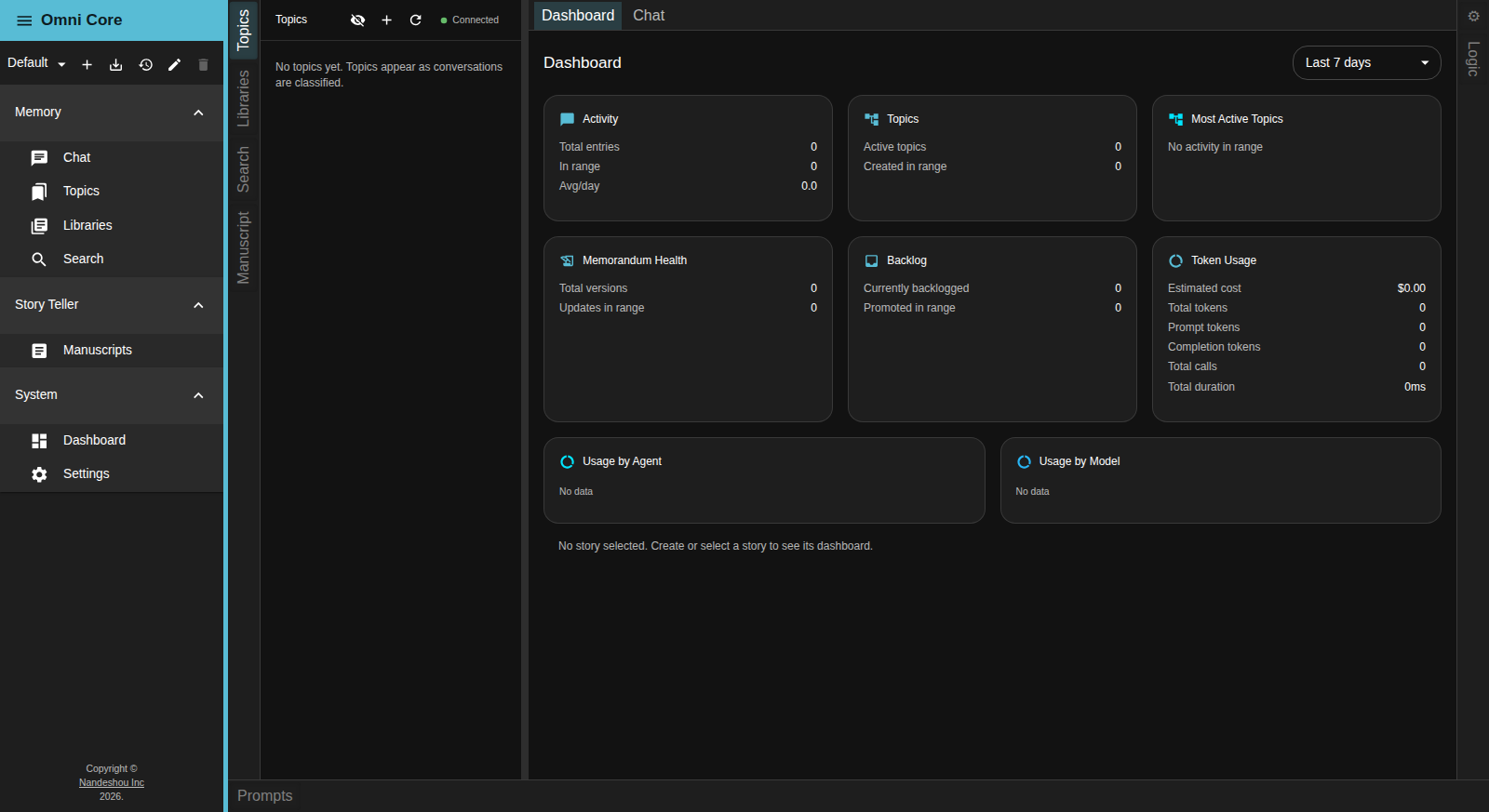
The Dashboard tab gives you an at-a-glance view of the current workspace. A range selector at the top right — Last 24 hours, Last 7 days, Last 30 days, or Month to date — sets the window for every card:
- Activity — total conversation entries, entries in range, and average per day.
- Topics — active topics, topics created in range, and a breakdown by type.
- Most Active Topics — the topics with the most entries in range (click one to open it).
- Memorandum Health — memorandum versions, updates in range, and the largest memorandum.
- Backlog — how many conversation entries are waiting to be promoted into topics.
- Token Usage — estimated cost, total tokens, prompt/completion split, calls, and total duration.
- Usage by Agent and Usage by Model — token usage broken down as horizontal bars.
When a story is active, a story-progress section appears below the cards. It’s a good first stop when you return to a workspace after time away.
The Prompts panel
The Prompts panel (bottom dock) lists the system prompts that steer the AI, shown as a table with Name, Stream Type, Mode, and Description. Double-click a row to open that prompt in an editor and review or change its text. You can also Copy Selected a default prompt into another mode, or Delete Selected for a non-default prompt. This is an advanced surface — the defaults work out of the box.
Good to know
- Collapse the menu rail with the ☰ button next to the Omni Core title to give the panels more room; items shrink to their icons.
- The Logic panel (right dock) is an advanced, node-based editor for building custom logic graphs and functions that the assistant can route through. Most work never needs it.
- Layout, dock sizes, and window bounds are saved automatically and restored per workspace.
Related pages
- Kura Memory & Topics — the Topics panel in depth
- Libraries & Search — the Libraries and Search panels
- Models & Privacy — the Settings panel and model configuration