Clients & Contacts
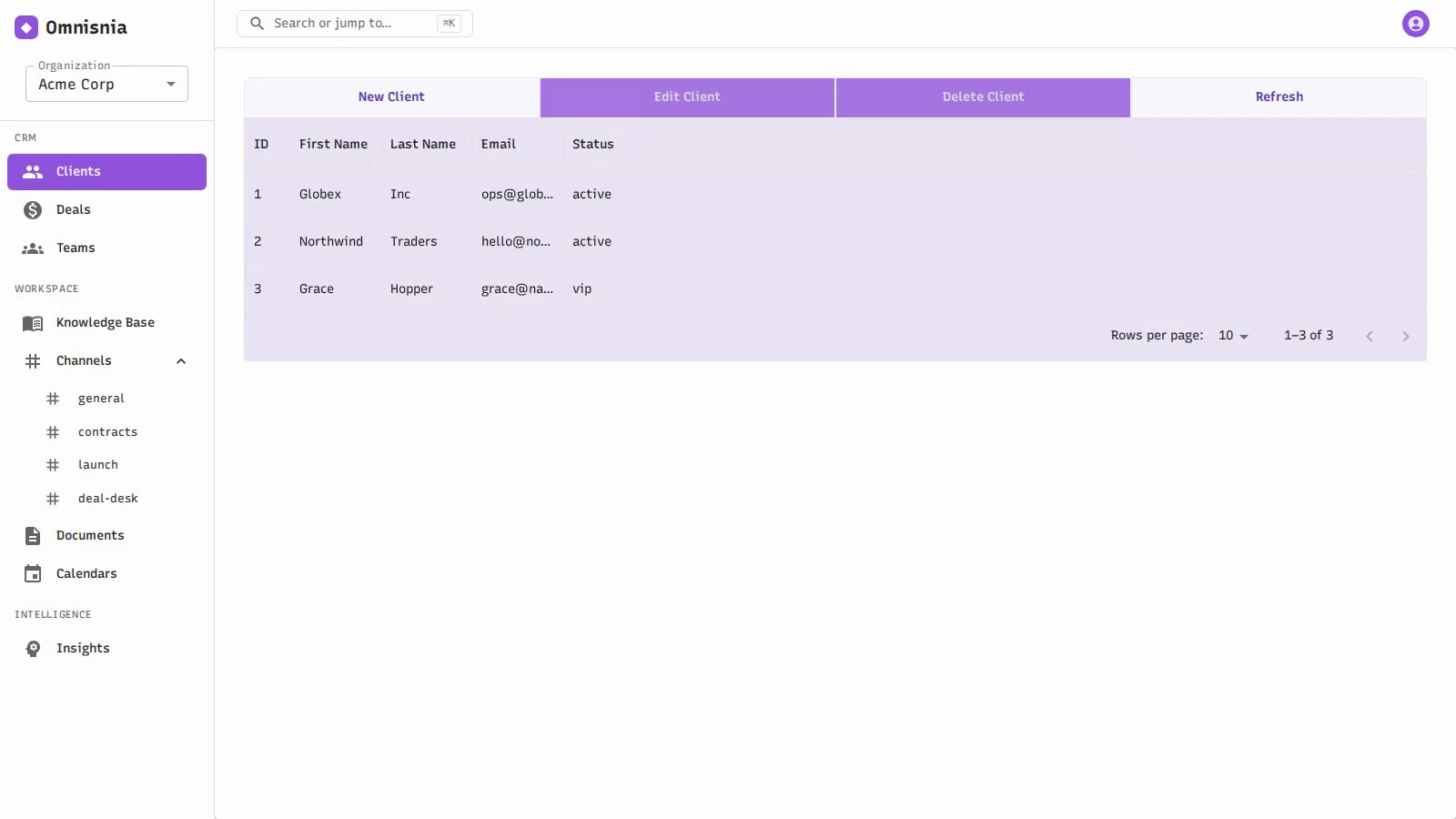
Clients are the accounts you do business with, and contacts are the people at those accounts. Together they are the foundation of your CRM: leads convert into clients, deals belong to clients, and support cases and activities hang off them.
Clients
A client (also called an account) is a company or individual you have a relationship with. Every client belongs to your current organization and is visible to that organization’s users.
Client fields
| Field | Description |
|---|---|
| First name / Last name | The client’s name |
| The primary email address | |
| Address | A postal or mailing address |
| A link to the client’s LinkedIn profile | |
| Status | Where the client stands with you — for example active, inactive, or vip |
| Notes | Free-form text for anything else worth recording |
| Custom fields | Any additional fields your organization has defined — see Custom Fields |
Creating a client
Open the Clients area and choose to add a new client. Fill in at least a name, add whatever other details you have, and save. The client is created in your current organization and appears in the client list.
Editing a client
Select a client from the list and edit it. Change any field and save; your changes update the record in place. You can also update a client’s status as your relationship with them changes.
Deleting a client
You can delete a client you no longer need. Deleting removes the client from your organization. If you have duplicate clients rather than an unwanted one, prefer merging them so that history is preserved — see Import, Export & Dedupe .
Custom fields on clients
Beyond the built-in fields, your organization can define its own fields on clients — for example a “Renewal date” or an “Account tier”. These appear alongside the standard fields when you create or edit a client, and you can group and filter reports by them. See Custom Fields .
Contacts
A contact is a person associated with a specific client — a buyer, a champion, or anyone else you deal with at that account. Contacts are always tied to a client, so you keep the people organized under the company they belong to.
Working with a client’s contacts
From a client, you can:
- Add a contact — record a new person at that account.
- Edit a contact — keep their details current.
- Remove a contact — delete a contact you no longer need.
Because each contact belongs to a client, you can see all the people at an account in one place, and you can address sales email and sequences to a specific contact.
What connects to clients
Clients tie together much of Omnisnia:
- Deals belong to a client — see Deals & Pipelines .
- Support cases are raised for clients — see Support Cases .
- Activities (calls, notes, emails, and auto-logged events) accumulate on each client’s timeline — see Tasks & Activities .
- Leads become clients when you convert them — see Leads .
Related pages
- Leads — where many clients start
- Deals & Pipelines — opportunities tied to a client
- Custom Fields — extend the client record with your own fields
- Import, Export & Dedupe — bulk-load clients and merge duplicates