Getting Started
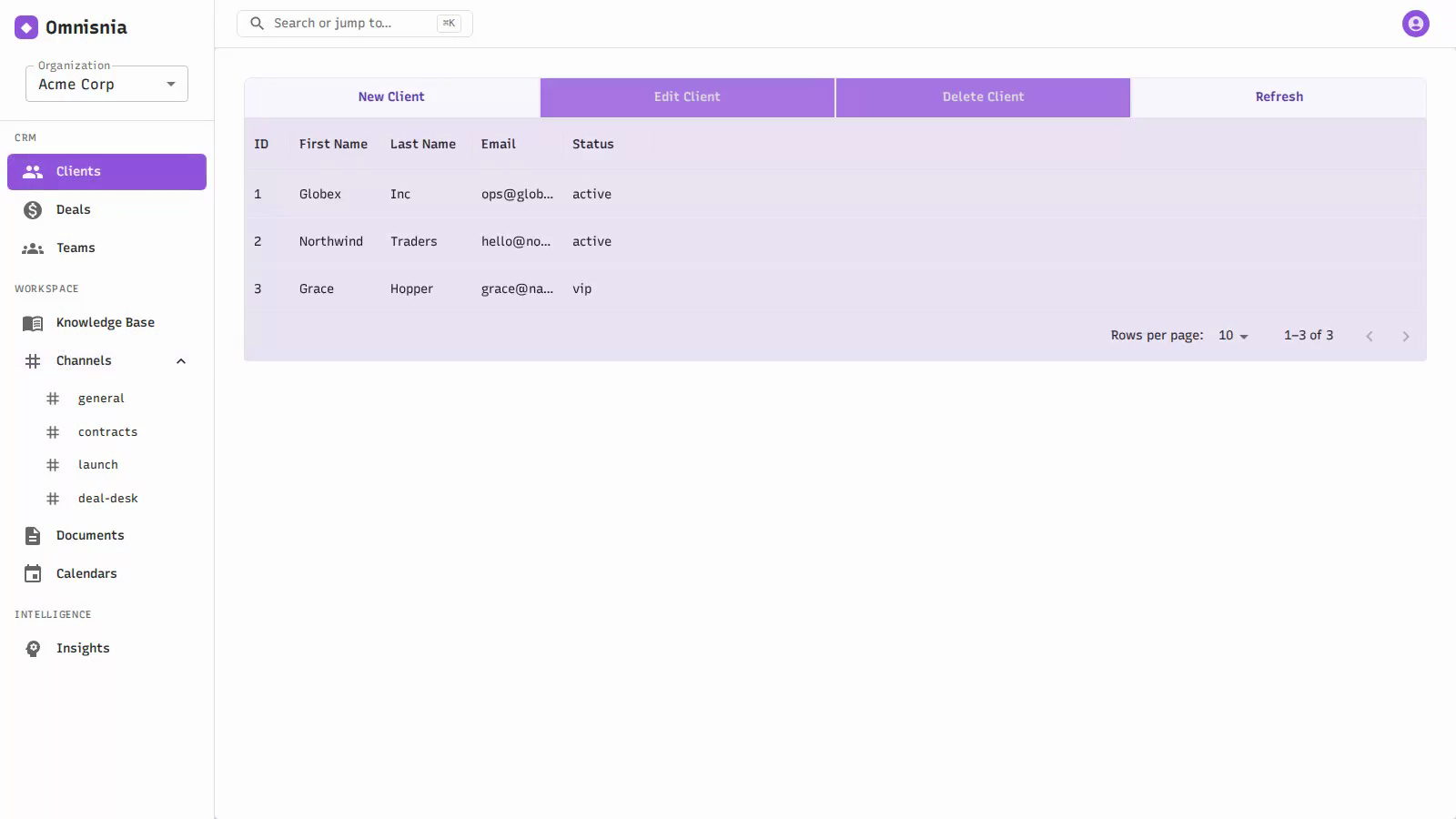
This page walks you through creating an account, understanding organizations and how they keep data separate, logging in, and finding your way around the main areas of Omnisnia.
Signing up
You create an account by registering. Registration asks for:
- Your email address
- A password (at least 8 characters)
- Your first name and last name
- An organization name
Registering does two things at once: it creates your personal account, and it creates the organization you named. That organization becomes your first workspace, and every record you create lives inside it.
The first account is the administrator
The very first account registered on an instance becomes the instance administrator. Administrators can do everything a regular member can, plus a set of setup and governance tasks: inviting and managing users, managing organizations, editing plans, configuring the AI inference endpoint, and managing licensing. See roles in Account & Organizations.
If your organization already has Omnisnia set up, you will not register the first account yourself — an administrator will invite you instead.
Organizations and tenant isolation
An organization (also called a tenant) is a self-contained workspace. Every business record in Omnisnia — every client, lead, deal, task, document, and message — belongs to exactly one organization.
Tenant isolation means the boundary between organizations is absolute and enforced by the system itself, not by convention or by careful use. When you are working in an organization, you can only ever see and change that organization’s data. There is no way for a request to reach across into another organization’s records, whatever it asks for.
You can belong to more than one organization (for example, if you consult for several companies). When you do, you choose which one you are working in at any given time — see Switching organizations . A brand-new account belongs to just the one organization it created at sign-up, and Omnisnia selects it for you automatically.
Logging in and out
- Log in with your email and password. Omnisnia gives you a session that keeps you signed in.
- Log out to end your session. Logging out revokes the session immediately, so it can no longer be used.
If you belong to more than one organization, you pick which one to work in after logging in; if you belong to just one, you go straight into it.
Deployment modes
Your administrator chooses how the instance is set up, and that affects what you see:
- Team mode (the default) shows everything, including the collaboration features — Teams and Channels .
- Solo mode is for single-person use. It hides Teams and Channels, since those are multi-user features. All CRM features remain available.
A tour of the main areas
Omnisnia is organized into a few working areas. Everything is scoped to the organization you are currently in.
| Area | What you do there | Learn more |
|---|---|---|
| Clients & Contacts | Keep your accounts and the people at them | Clients & Contacts |
| Leads | Capture and qualify new prospects, then convert them | Leads |
| Deals & Pipelines | Track opportunities through your sales stages | Deals & Pipelines |
| Products & Quotes | Price a deal and send a customer-facing quote | Products & Quotes |
| Tasks & Activities | Manage to-dos and see a history of every record | Tasks & Activities |
| Calendar & Reminders | Schedule events and get reminded of what’s due | Calendar & Reminders |
| Support Cases | Track and resolve customer issues | Support Cases |
| Reports & Dashboards | Measure your pipeline, forecast, and funnel | Reports & Dashboards |
| Sales Email | Send templated mail and run multi-step sequences | Sales Email |
| Automation | Have Omnisnia react to changes without you | Workflow Automation |
| Collaboration | Chat in channels and manage documents | Collaboration |
| Omni | Ask questions and delegate actions to the assistant | Omni Assistant |
What to read next
- New to CRM work in Omnisnia? Continue with Clients & Contacts , then Leads and Deals & Pipelines .
- Setting up your organization for a team? See Account & Organizations for inviting users and roles.