Knowledge Base
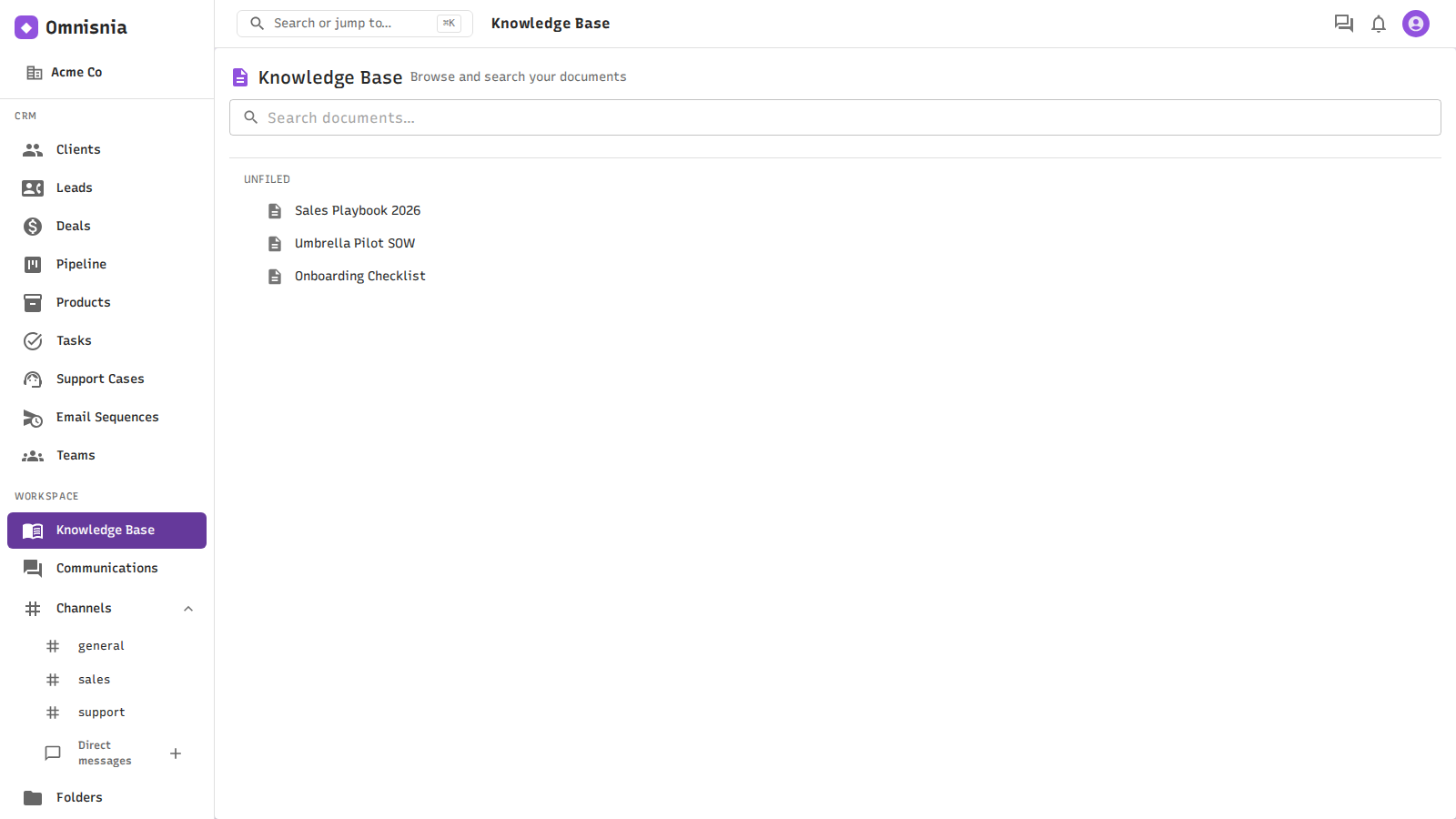
The Knowledge Base is a single place to browse and search every document in your organization. It’s a read-and-find view over the same files you manage under Documents — it doesn’t upload or change them. You’ll find it under Knowledge Base in the left navigation (the Workspace group).
Browse your documents
- In the left navigation, click Knowledge Base.
- You’ll see your folders as an expandable tree, each showing how many documents it holds. Documents whose folder is missing appear under Unfiled.
- Expand a folder and click a document to open it in the document editor .
Search your documents
- In the Search documents… box at the top, type a word or phrase.
- Results appear as you type, each with a snippet showing your search term in context (the matching words are highlighted).
- Click a result to open that document.
Search covers the text content of your documents (a fast full-text search), and it respects your permissions — you only ever see documents you’re allowed to. If nothing matches, you’ll see “No documents match ….”
Good to know
- Knowledge Base search is full-text (keyword) search, not semantic/AI search. To ask questions about your documents in natural language, use the Omni assistant in a channel.
- To add or change documents, use Documents ; the Knowledge Base only browses and searches them.
Related pages
- Documents — upload, organize, preview, and version documents
- Omni Assistant — natural-language answers grounded in these documents